How to Use Ghost Camera to Line Up a Before and After Shot
Ghost Camera lays your before photograph over the live viewfinder so the second shot lines up before you press the shutter. Here is how to use it, the right opacity for different subjects, and what it cannot do for you.
You took the before photograph on Monday. Now it is Thursday, or it is six weeks later, and you are standing in the same room trying to reconstruct a decision you made without thinking at the time: where exactly you were standing, how high you held the phone, how far back you were. You do not remember, because there was nothing to remember. You just took a photo.
This is the moment Ghost Camera exists for. It is a camera mode in our app that puts your before photograph on the live viewfinder while you compose the after, so you are aligning against the actual first frame rather than against your memory of it.
What it actually is
Open Ghost Camera and choose the before you already have. It appears laid over what your camera is seeing right now, at an opacity you control between 0 and 70 percent. At a low setting you mostly see the live frame, with a faint version of the before ghosted over the top. Turn the opacity up and the before gets more solid, until at the top of the range it is hard to see the live frame at all.
You move the phone until the fixed things in the ghost and the fixed things in the live view sit on top of each other. A doorframe on the doorframe. A kerb on the kerb. A jawline on the jawline. Then you take the shot.
That is the whole feature, and it is worth being plain about what it is not. There is no AI alignment, no auto-masking and nothing in the app correcting your framing after the fact. Ghost Camera does not line the photos up for you. It lets you see the mismatch while your feet can still fix it, which is a smaller and much more reliable thing than an automatic overlay would be. It is free and unlimited, alongside the plain camera and the gallery as the three ways to bring a photograph into a project. You can read what else the app does on the app page .
Using it, in order
- Start with the before photograph itself, not a description of it. Open the project and select Ghost Camera instead of the plain camera or the photo picker.
- Set the opacity low to begin with, around a quarter, so you can still see where you are standing.
- Find one fixed point first. A corner, a door, an eyebrow, a kerb. Anything in the frame that has not moved and will not move before you take the after.
- Move your feet, not just the phone angle, until that one point sits where the ghost puts it. Distance and height do more of the work here than a small side to side shift.
- Raise the opacity once you are close, to check the rest of the frame against the ghost rather than just the one point you started with.
- Take the shot, and take a second one. A blink or a focus miss costs you nothing if you have a spare.
The right opacity depends on the subject
Higher is not automatically better. At 70 percent the ghost is solid enough that you stop seeing the live frame properly, which defeats the point of a live viewfinder. The useful opacity is the lowest one that still lets you judge the alignment, and that number moves with what you are shooting.
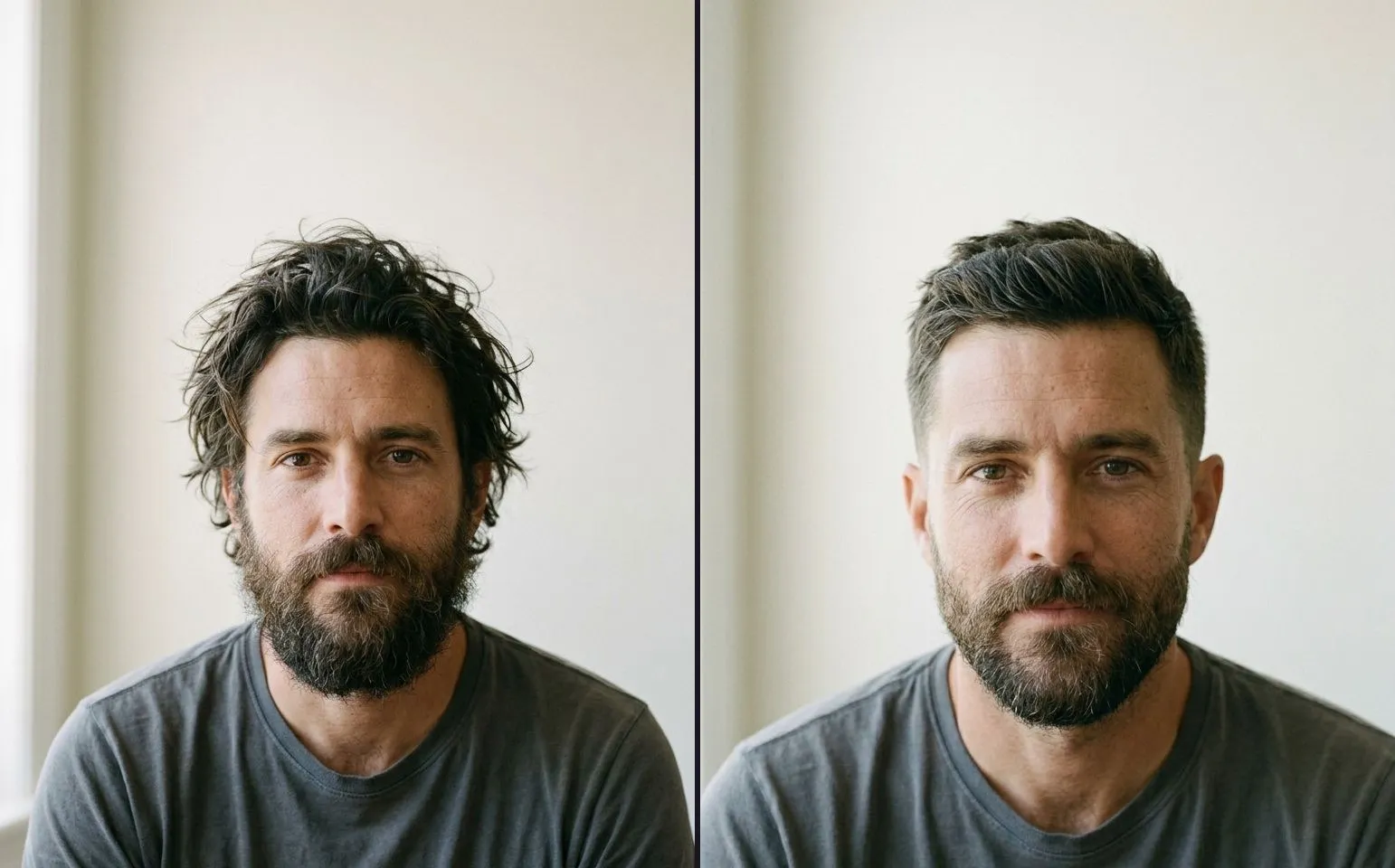
A face. Keep it low, around a quarter to a third. A face has a small number of features you are actually checking, mostly the eyes and the jaw, and a heavy ghost over a small subject makes it harder to see the person you are photographing right now.
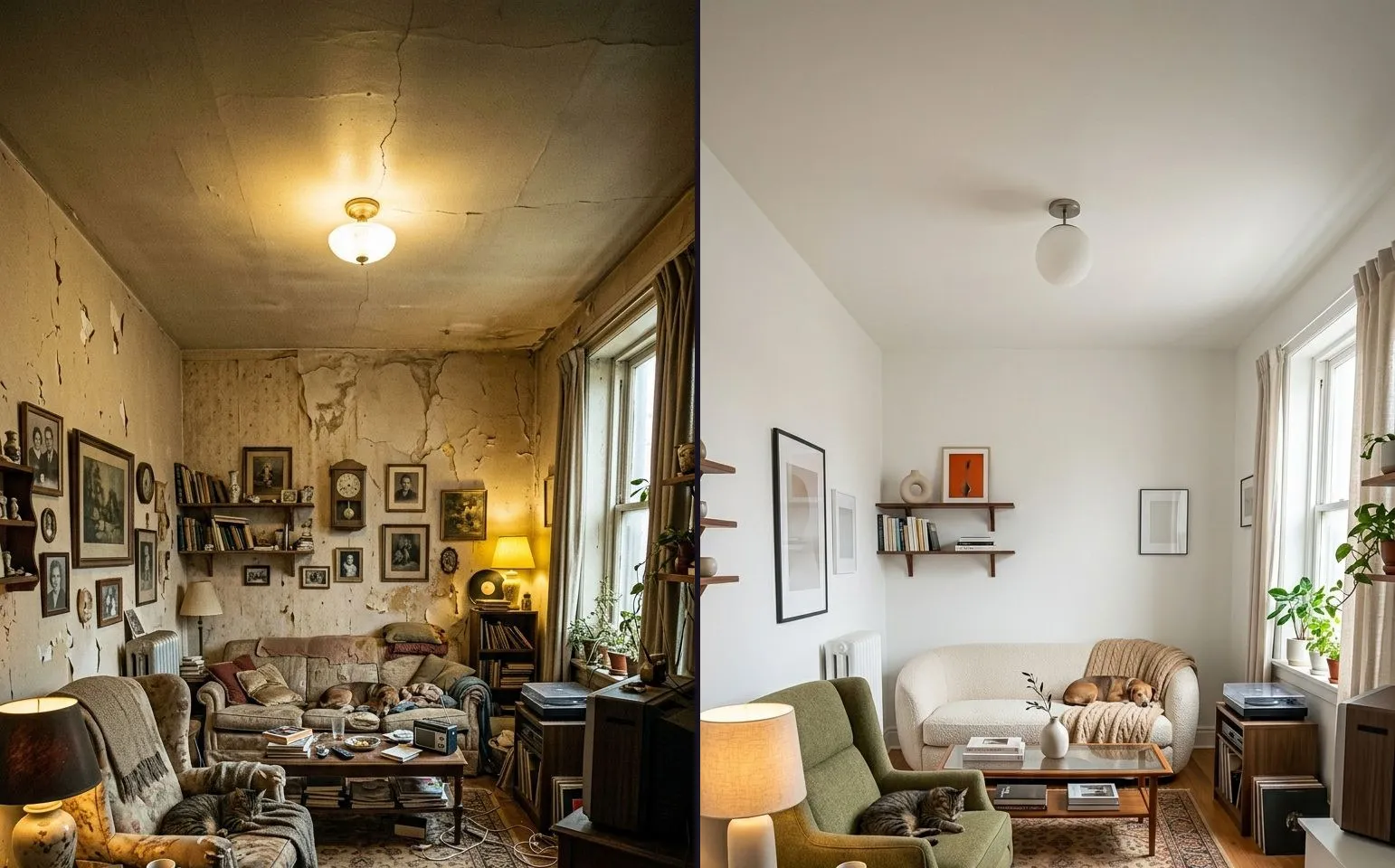
A room. Something closer to forty percent tends to work, because a room gives you long straight lines, doorframes and skirting boards, that are easier to align when the ghost is fairly solid. This is the case the feature was built for, and it is the one where the alignment problem is hardest to solve by eye alone.
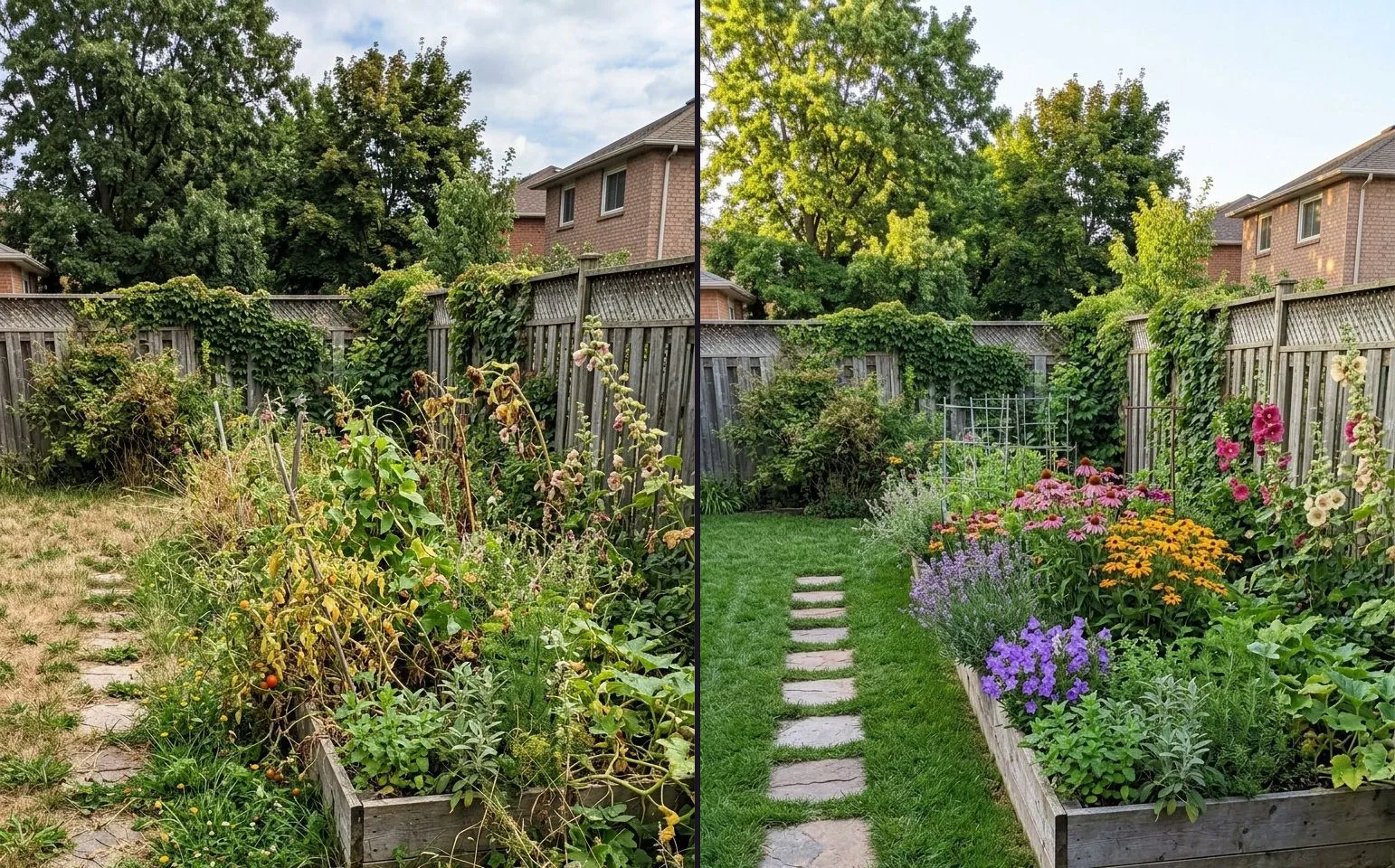
A wide outdoor plot. A driveway, a garden, a fence line. You can usually push a little higher than you would for a room, because there is less fine detail in the frame for a solid ghost to obscure. Even here, stop well short of 70 percent. Once the live frame is hard to see, you have lost the thing that made this useful in the first place.
Treat these as starting points and adjust from what you see, not as fixed settings to dial in and forget.
What it cannot fix
Ghost Camera solves one problem: position, height and angle drifting between two shots taken apart in time. It is very good at that problem and it does not touch any of the others.
It will not fix a lens change. If the before was shot at 1x and the after is shot at 0.5x, the ultrawide distorts the frame in a way no amount of careful alignment corrects, and the pair will still show a shape change you did not intend. It will not fix a distance change either: line the ghost up perfectly from the wrong distance and you get a perfectly aligned photograph of the wrong-sized subject. And it has nothing to do with light, background or pose, the other variables that make two photographs of the same thing look like two different things. Alignment is not the same as matching.
The full method, lens, distance, height, light and background together, is in how to take matching before and after photos . If your pair still reads as off after using Ghost Camera properly, the cause is almost certainly one of those other variables, and the seven usual tells are laid out in why your before and afters look fake .
Where it goes wrong
Three habits undo Ghost Camera before it gets a chance to help.
The first is treating the opacity slider as one fixed setting instead of something you adjust for what you are shooting. A face and a driveway do not want the same number, which is the whole reason the section above splits them out rather than giving you a single figure to remember.
The second is chasing the ghost with your eyes while your feet stay where they are. The overlay tells you which way to move, not which way to tilt the phone. If the ghost sits to the left of the live frame, step until it does not, rather than angling the camera to paper over the gap. A tilt can make two mismatched frames look aligned on the small preview and still leave them mismatched once you compare the two full photographs afterwards.
The third is expecting Ghost Camera to fix a subject that has itself changed between the two visits. If a chair has moved, a door that was closed is now open, or the person is standing with different shoulders, no amount of careful alignment closes that gap, because the mismatch was never a camera problem. That is a background or a pose problem, and it belongs with the other variables in how to take matching before and after photos rather than with this one.
When you do not need it
If the before and after happen minutes apart in one visit, you probably do not need Ghost Camera at all. Hold your spot, hold your height, hold your distance, and shoot the second frame while the first one is still fresh in your memory. That is the whole method in the matching guide above, and it is enough for most same-session pairs.
Ghost Camera earns its place once the gap stops being minutes. Hours, days, or the harder case of weeks between a before and an after, which is common on a renovation, a garden project or any job that returns for a second visit. The longer method for that case, including what to do when you cannot get back to the exact spot, is in the same angle, six weeks later .
After the shot
Once the two photographs line up, the rest is presentation rather than photography. You can check how a pair holds together in your browser first with the free before and after slider : drop both photos in and drag the handle. A pair that was aligned properly holds still as the handle moves.
Our app takes those two still photographs and turns them into a video, a GIF or a single image. There is no video input anywhere in it, no timeline and nothing to trim, it is a photo pair in and a finished post out. Minimal is a plain, undecorated option worth starting from if you want the photographs themselves to carry the post, and the rest of the clean category sits alongside it.
The free tier, stated plainly: three exports a day, each behind a rewarded ad, a watermark on video and image exports, 9:16 and 1:1 ratios, Slider Reveal only, and no music. Free and unlimited: all four comparison modes, every filter, all 83 stickers, the full label editor, your logo and business name, Ghost Camera, saved projects, and all ten app languages.
Common questions
- What is Ghost Camera?
- A camera mode in the Before and After Video Maker app. It shows your before photograph laid over the live viewfinder at an opacity you set between 0 and 70 percent, so you can move the phone until the ghosted before lines up with what you are actually pointing at, then take the after. It is free and unlimited.
- What opacity should I use for Ghost Camera?
- Enough to see the ghost, not so much that you lose the live frame. A face usually needs less, around a quarter to a third, because you are checking a small number of features rather than a whole scene. A room typically wants around forty percent, since a doorframe or a skirting line is easier to align against with the ghost fairly solid. A wide outdoor plot can take a little more, because there is less fine detail to obscure. Above that the live frame starts to disappear, and you are back to guessing.
- Does Ghost Camera line the photos up automatically?
- No. There is no automatic alignment, no auto-masking and nothing correcting your framing after the fact anywhere in the app. Ghost Camera shows you the mismatch while you can still do something about it. You still move the phone.
- Can Ghost Camera fix a photo taken with the wrong lens or from the wrong distance?
- No. Ghost Camera solves position, height and angle, because you can see those three drift against the ghost in real time. It cannot put back a lens or a distance you did not use for the before. If the before was shot on the 1x lens from two paces, the after needs the same lens and the same two paces, and Ghost Camera will show you that mismatch rather than repair it.
- Is Ghost Camera free?
- Yes. It is free and unlimited in the app, along with all four comparison modes, every filter, all 83 stickers, the full label editor, and your own logo and business name. The app's free tier limits are on exporting, not on shooting: three exports a day, each behind a rewarded ad, with a watermark.
- Do I need Ghost Camera if I am taking both photos in the same session?
- Usually not. If the before and after are minutes apart, you can just hold your position, your height and your distance and shoot the second frame from memory. Ghost Camera earns its keep once the gap is hours, days or weeks, which is long enough that memory alone stops being reliable.