
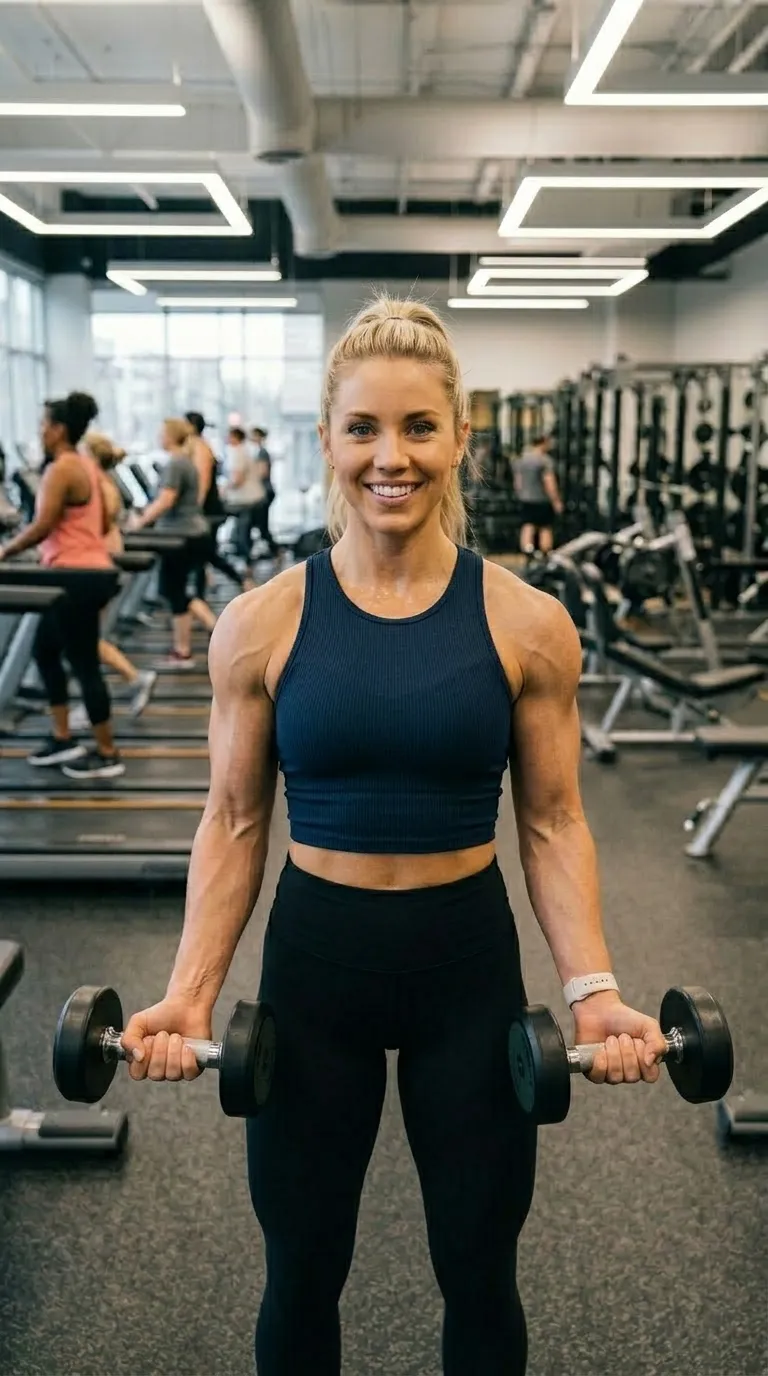
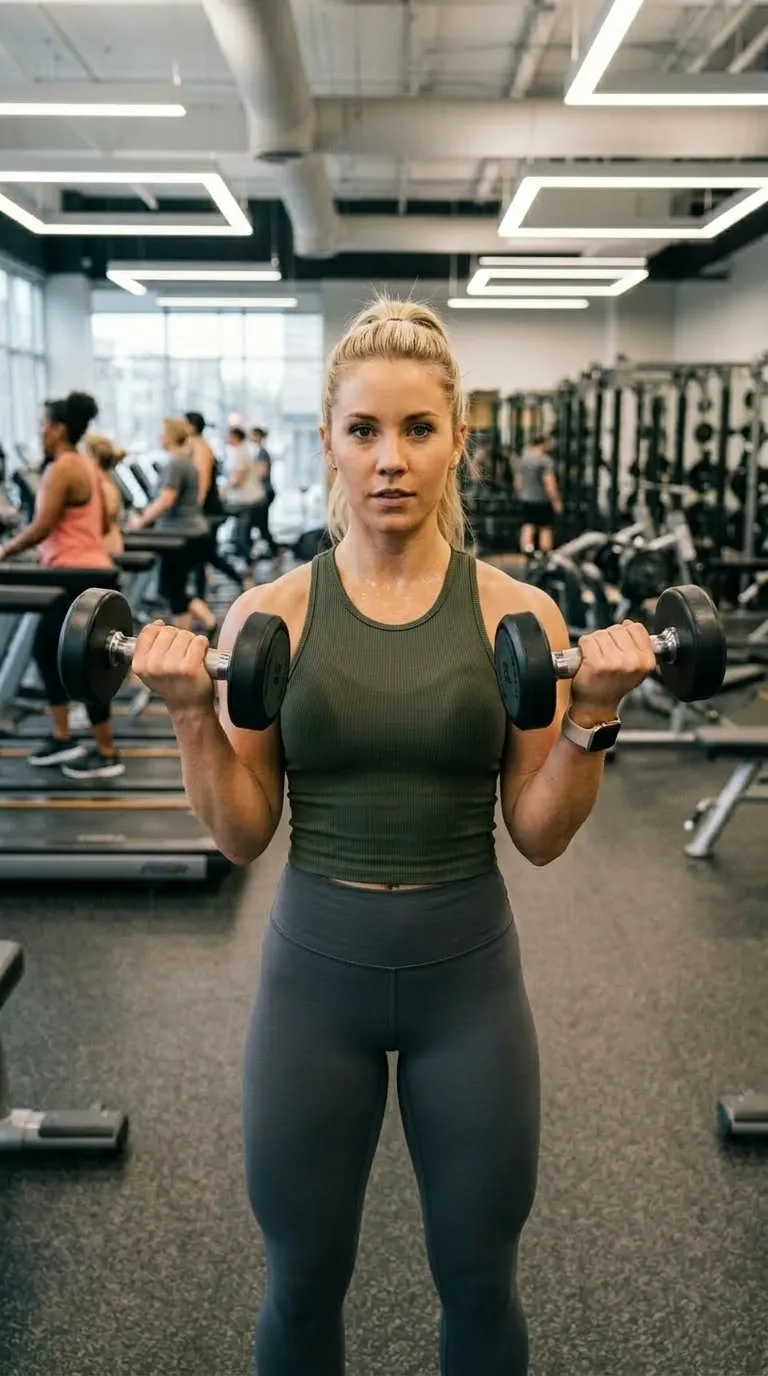
 BeforeAfter
Pro templateFitness ExtendedLifestyle
Lifestyle category, on a 9:16 vertical canvas, with Bebas Neue labels reading Day 1 and 90 Days, over a gradient ground. Drag the handle to see it work.
Day 190 DaysTeal into a deep teal, a three point white rule, vertical, rounded slightly, dated. It is the calm end of fitness: mobility work, rehab, posture, walking, anything where the audience is not chasing a transformation. Teal reads clinical enough to be taken seriously and warm enough not to look like a hospital, which is a narrow gap the rest of this pack does not aim at.
#008B8B shades into #004444 behind the two halves, and that wash is part of the template rather than a filter on your photographs. The rule between the halves is #FFFFFF at 3 points, and the wording sits bottom centre in Bebas Neue. The canvas is 9:16 vertical, rounded by 8 points, and the labels arrive reading Day 1 and 90 Days. It arrives with the date stamp switched on, because work in this register is usually being dated as well as shown.
On a template built for a long gap, two values earn a second look before any of the others: whether the date stamp is switched on, and what the labels already say. Both sit in the panel beside the diagram. The diagram is the frame at the size the app composes it, showing the outline, the rule, the label corner and any reserved band.
Read out of the shipped app build by the catalogue extractor, not typed.
A long-gap pair has one enemy and it is drift. Everything moves over six weeks: the light, the room, the phone, the haircut, the clothes. The pair that convinces is the one where nothing changed except the thing being claimed, so the setup has to be repeatable by somebody who has forgotten how they did it. Same wall, same time of day, same distance, feet in the same place. Write down where you stood. In three months you will not remember, and the shot you cannot repeat is worth nothing.
Weeks between two photographs is weeks for something to drift. Put the pair through the free slider tool before you build the post, on your own device and in about two seconds, then use the guide to why pairs look staged to work out which part moved.
This is the category where an honest pair is easiest to make and easiest to fake, and the difference shows. Lighting, posture, a tan, a pump, the time of day, and the same body reads two ways with nothing having changed. Nothing in the app adjusts a body or a face, and nothing in it should be used to imply a result you did not get. On the mechanical side, the labels shipped with these templates are editable text, so Day 1 and 90 Days are starting points rather than measurements the app checks.
On this template in particularThe date stamp records the date the export was made rather than the date either photograph was taken. On a series shot over weeks that distinction matters, so export as you go rather than in one batch at the end.
Without upgrading
BeforeAfterOpens on the free tier, on a 9:16 vertical canvas with Inter Bold labels.
Same pack, other end
Day 190 DaysA lighter ground in the same pack, with a 2 point #111111 rule.
Same label face
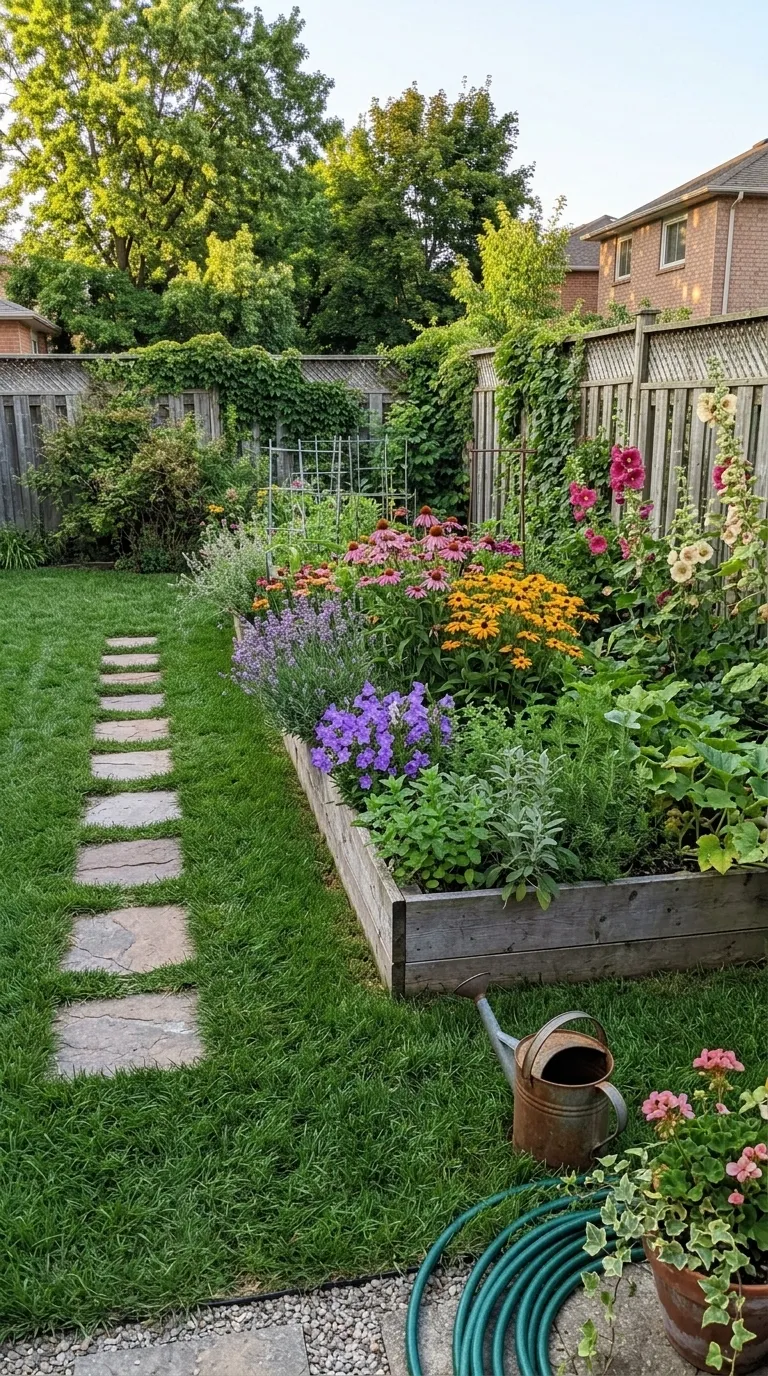
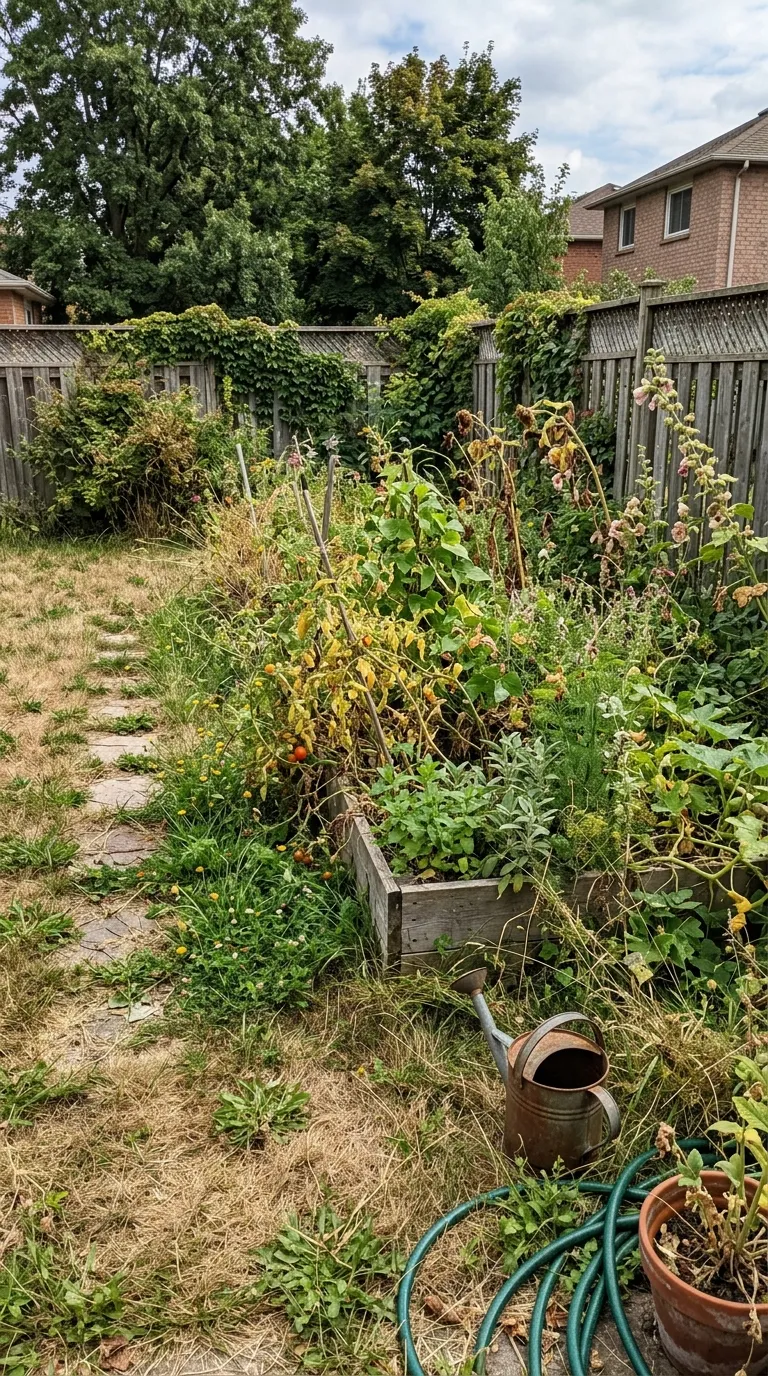 BeforeAfter
Also set in Bebas Neue, so a series can change frame without changing voice.
Nearby in the catalogue

 BeforeAfter
clean category, 1:1 square, Free pack.
Back up to every lifestyle template, or to the whole catalogue. The free browser slider is at the slider tool, and the hashtag research by trade starts at the hashtag index.
Two photographs, one template, and a reveal that plays in about four seconds. Three exports a day are free, each behind a short rewarded ad.